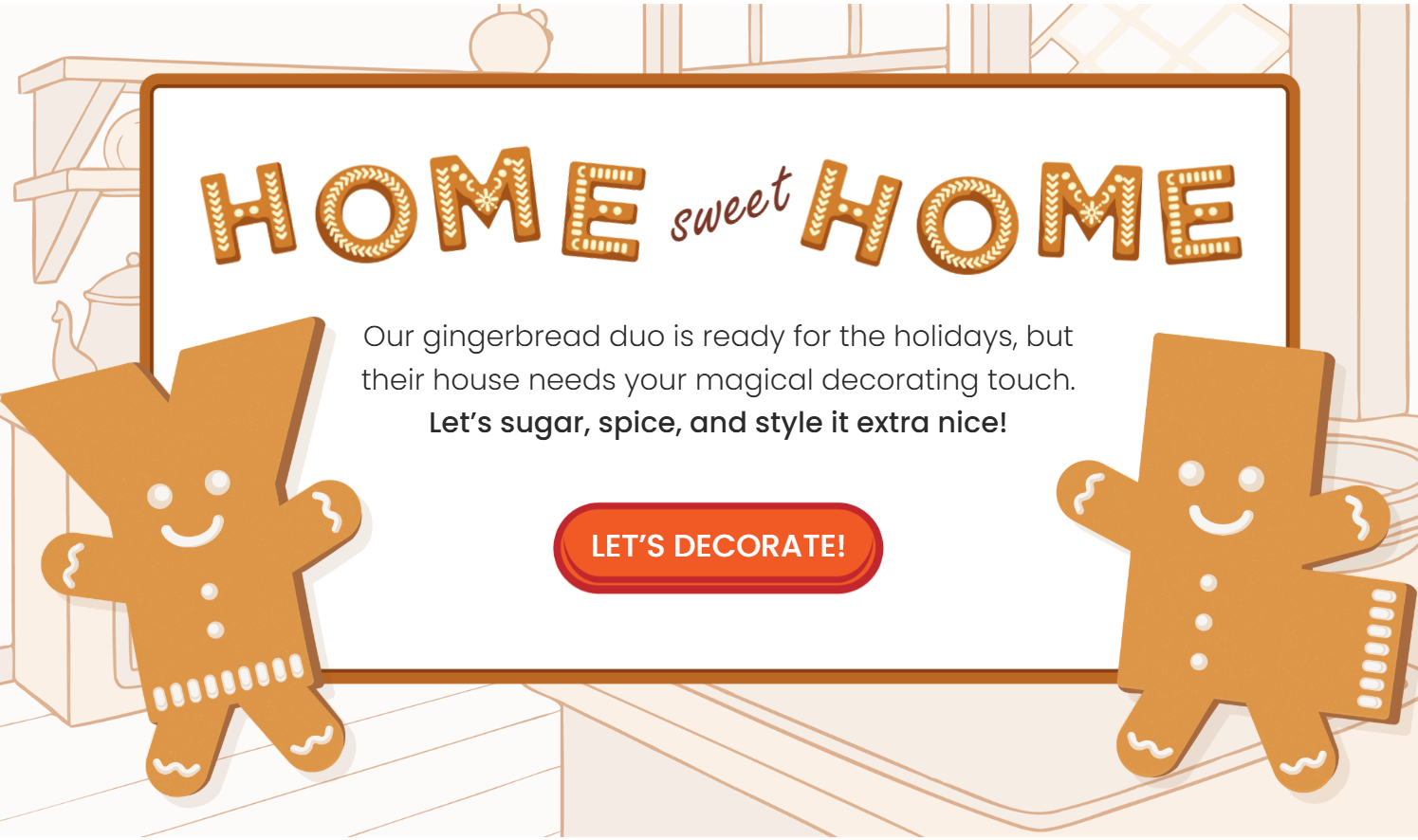
It’s that time of year when we receive lots of “how did you build that” questions about our Holiday Card. This season, we challenged you to release that creative inner child by decorating your own Gingerbread House.
Several of you even shared your delicious creations with us, which we just adored. Here are a few of our favorites:
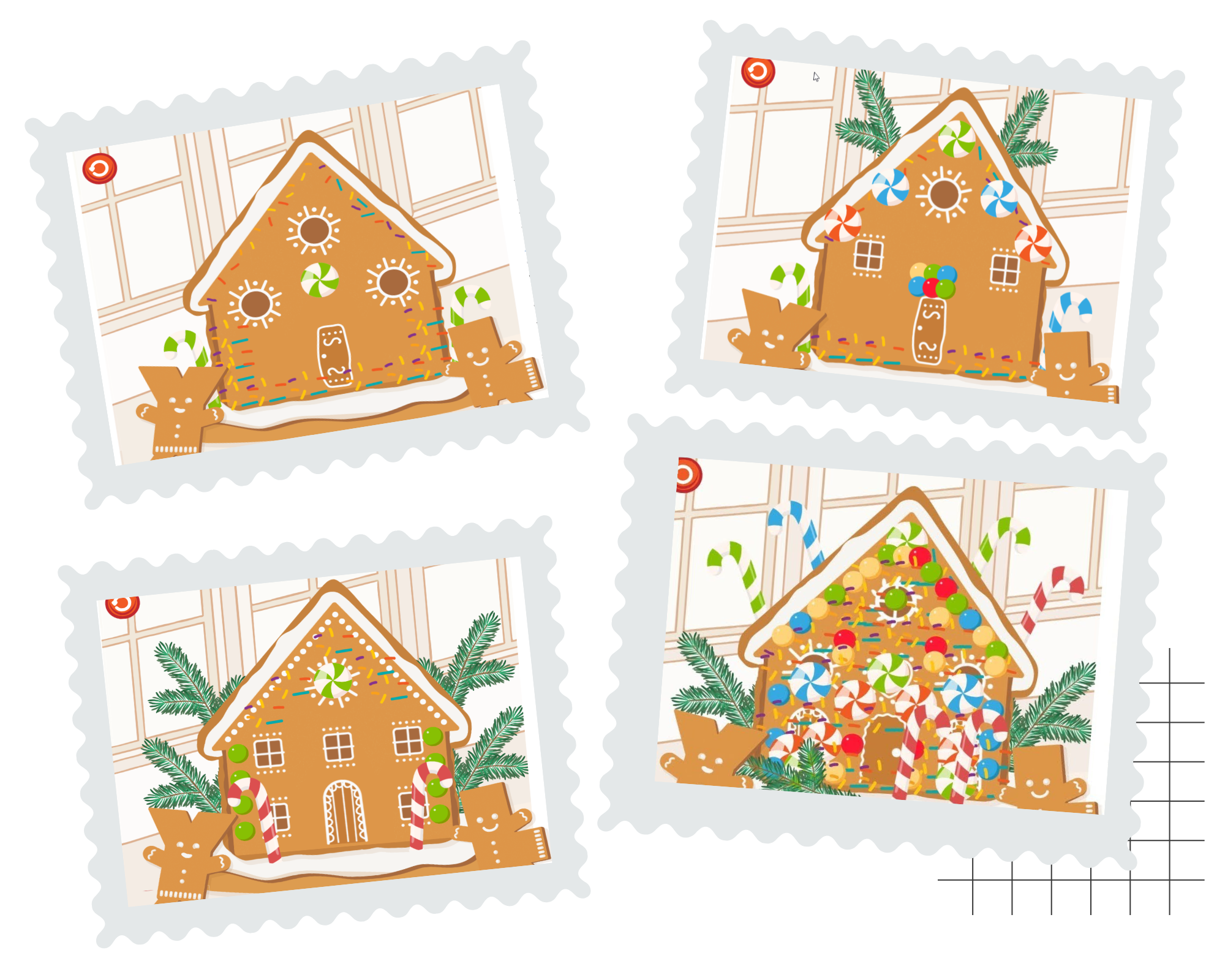 Did you get a chance to decorate your own gingerbread house? If not, you can check it out here. We’d also love for you to share an image of your sweet creation with us. So, what was our recipe for this tasty little card … how did we make it come to life?
The key to any recipe is fresh, high-quality ingredients, so, first of all, kudos to our design team for the creation of the gingerbread and candy assets. As you can probably guess, this was built using our most common appliance (or in this case, application), Articulate Storyline.
While much of this build was pretty obvious to the average Storyline chef, there may be a few more nuanced decisions we made that may surprise you.
A Little Bit of Sugar (Emphasis Animations)
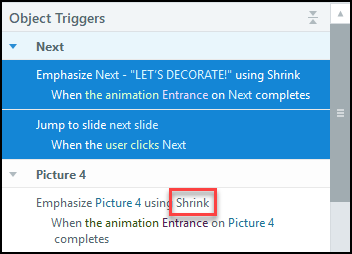
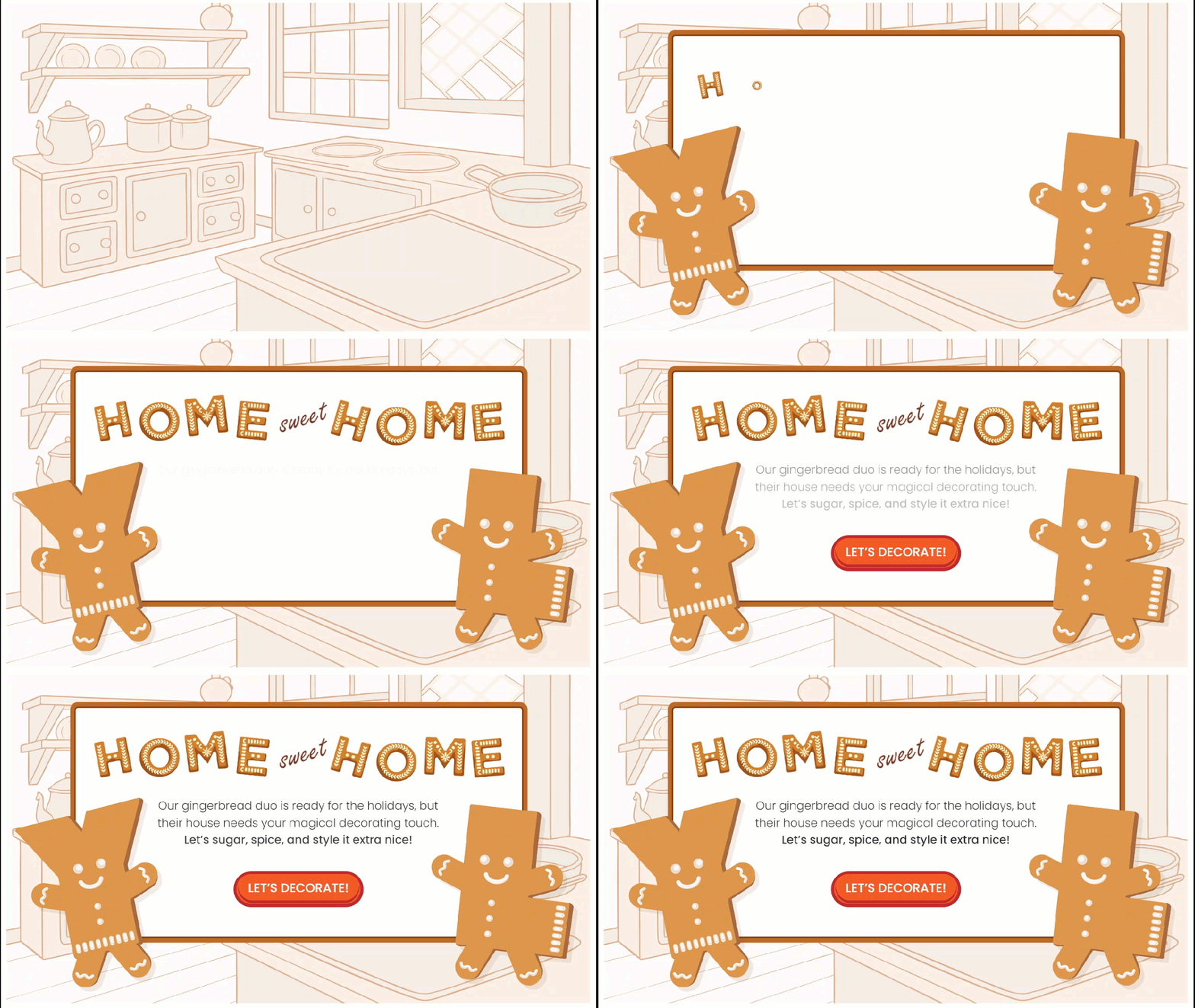
Animation use can often be the touch that brings the visual voice of your course to life. In our Holiday Card, we used the Shrink emphasis animation to add a nice subtle “pop” effect to each item as they enter the screen.
Notice how each letter and the “Let’s Decorate” button have that little extra impact as they enter. We think it adds a subtle sweetness to our gingerbread creation.
Is that Cinnamon or Nutmeg? (Layers and States)
Do you ever have that feeling when something seems familiar, but you’re not quite sure what it is? That’s often the way people feel about layers and states … sometimes, it’s just hard to tell which ingredient is used for that signature flavor.
In our Gingerbread House, it’s both! Our .story file contains layers for each stage of the decorating process.
Since the process for each layer is similar, we’ll reveal the process for the Windows (and Doors) layer here, but feel free to download the project file and explore the other layers on your own.
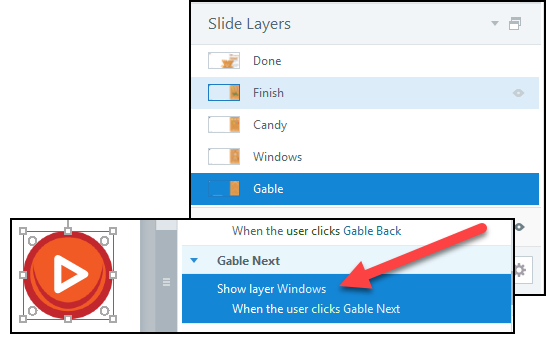
Triggering the layers is quite simple; however, we like to point out that we did adjust the properties of the layers slightly.
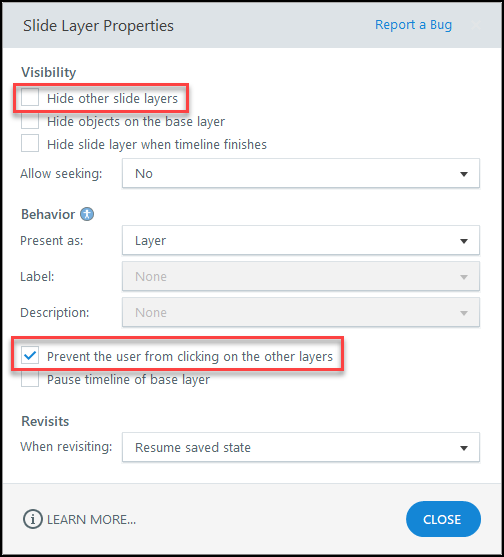
Since we wanted all of the decorations to stay on the house at each stage, we deselected the default option to “Hide other slide layers”.
We also selected “Prevent the user from clicking on the other layers”, which allows us to isolate the activity on each layer and also provides access to this activity to all users. That’s right! One of our goals for this recipe was to make sure the activity was accessible. This check box is one of the keys to helping meet that standard.
Gingerbread for Everyone
You may have noticed that this activity is NOT a drag-and-drop activity. Sure, that would have been easier to make, but then those who are dependent on a keyboard instead of a mouse, or those who use screenreaders, would not have been able to participate in this activity. That’s not the Holiday Spirit we were hoping for.
Decorating the House
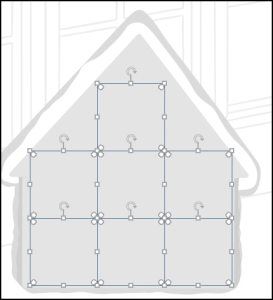 In our Window layer, we placed several transparent rectangles. These serve as placeholders for our windows and doors. (We used transparent rectangles instead of hotspots because we used state changes to create the windows and doors and, as you may know, hotspots don’t have states.)

Selecting an item in the decorating panel determines the state of the rectangle.
Storyline is Gluten Free
A lot of recipes depend on gluten to hold everything together. But, Storyline is gluten-free, right? So, what holds all of this together for us in Storyline? Variables! You’ll notice that the variables are the key to how all of this comes together.
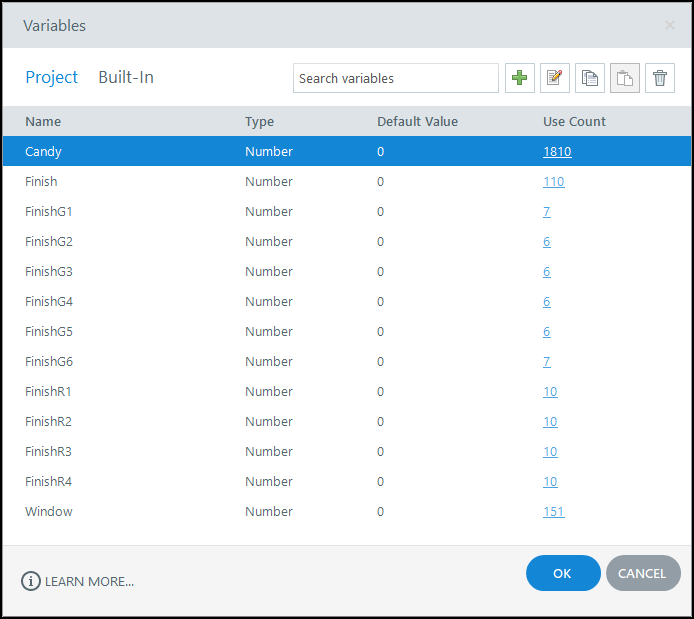
We created several variables for this project, but let’s focus on a number variable in our Windows layer named “Window.” The way it works is simple—selecting an item in the design palette changes the value of the variable.
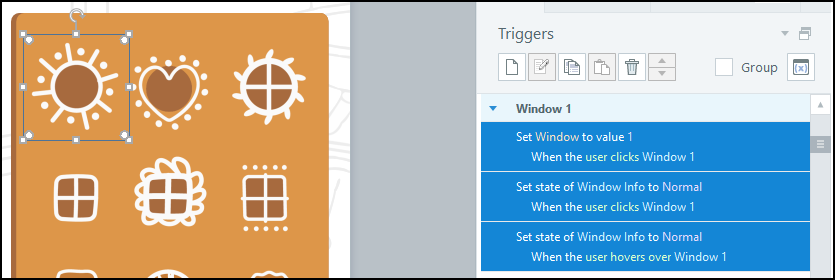
With that variable value now set, you can select one of the transparent rectangle placeholders to change its state.
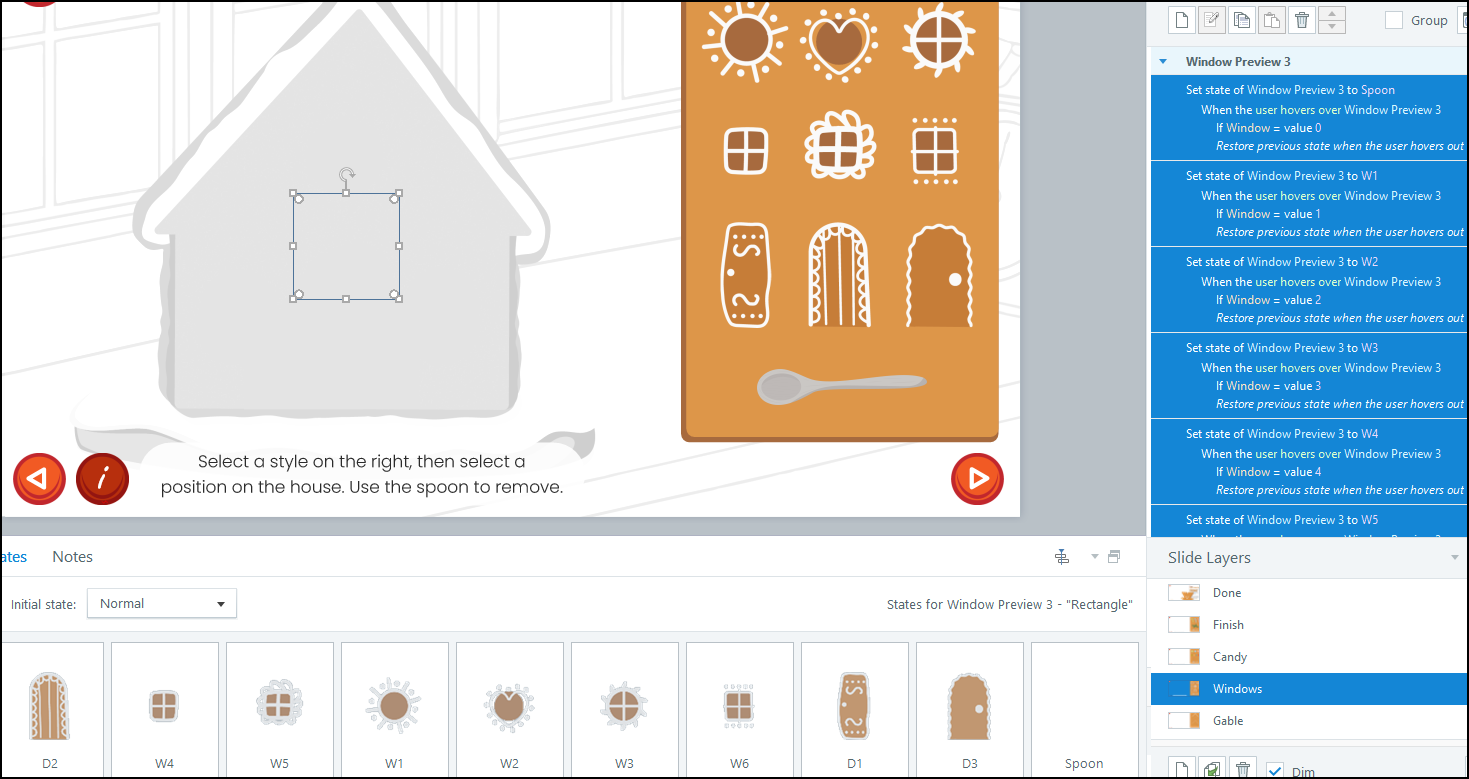
Feel free to swap in your own steps if you’d prefer—just like a recipe! Of course, if you change too much at once, things might get a little messy. But hey, that’s all part of the fun when you’re experimenting in Storyline!
Take a closer look at our ingredients by downloading the .story source file here – and enjoy experimenting with it in your own test kitchen. We would love to hear how it turns out.
 Huge thanks to Kim Cyprian for cooking up this amazing design! Her creativity really brought the flavor to this project. Feel free to “pepper” her with compliments (and maybe a stray chocolate chip or two)!
Want More on This Topic?
For more on the Storyline 360 elements we explored here, check out the following posts from Articulate and The Articulate Trainer blog:
How Can I Create a Custom Emphasis Animation?
How Can I Trigger an Object to Change Size?
How Did You Build the Holiday Card?
Overview of Variables in Storyline
Storyline 360: Emphasis Animations
Storyline 360: Working with Layers
Wishing you a sweet year of building,

~ Ron
Leave a Reply